As an Amazon Associate, we earn from qualifying purchases. Some links on this site are affiliate links at no extra cost to you. Our recommendations are based on thorough research and editorial judgment.
How Smart String Lights Connect to Your WiFi Network

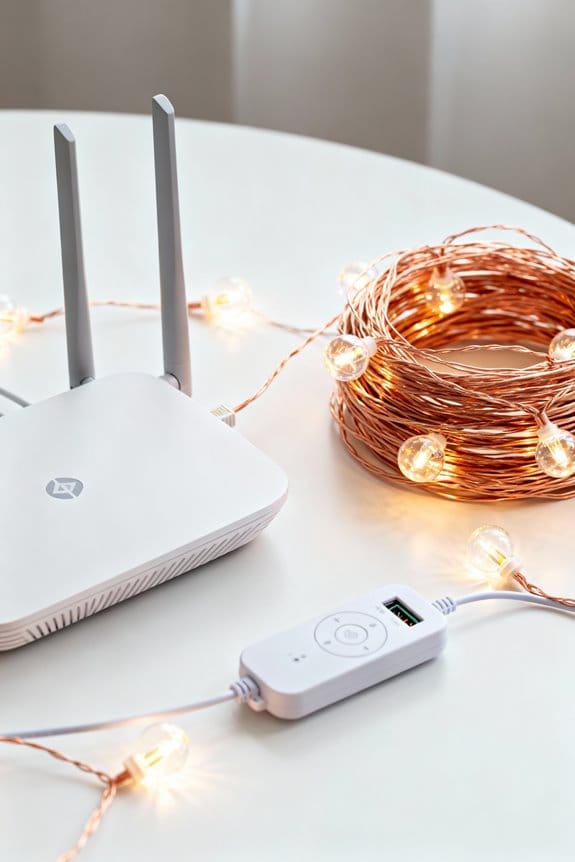
Smart string lights connect to a WiFi network by entering pairing mode, triggered by toggling the power switch rapidly three to five times, causing the lights to blink and signal readiness. The user then links the device through the Smart Life app, which requires a stable 2.4 GHz connection for ideal compatibility, enabling control of over 16 million colors, brightness adjustment from 1% to 100%, and scheduling features. Proper installation and voltage compatibility are essential, with troubleshooting available for common connection issues. Further insights explain customization and maintenance steps.
Key Takeaways
- Securely plug in smart string lights and toggle power 3-5 times rapidly to enter pairing mode indicated by blinking lights.
- Connect your smartphone to a stable 2.4 GHz WiFi network before attempting to pair the smart lights.
- Use the compatible app (e.g., Smart Life or Nanoleaf) to detect and add the smart string lights to your WiFi network.
- Follow app-guided prompts to synchronize lights with your WiFi by entering network credentials during setup.
- Confirm the smart lights remain powered on and near the router for a stable WiFi connection during pairing and operation.
Preparing Your Smart String Lights for Setup
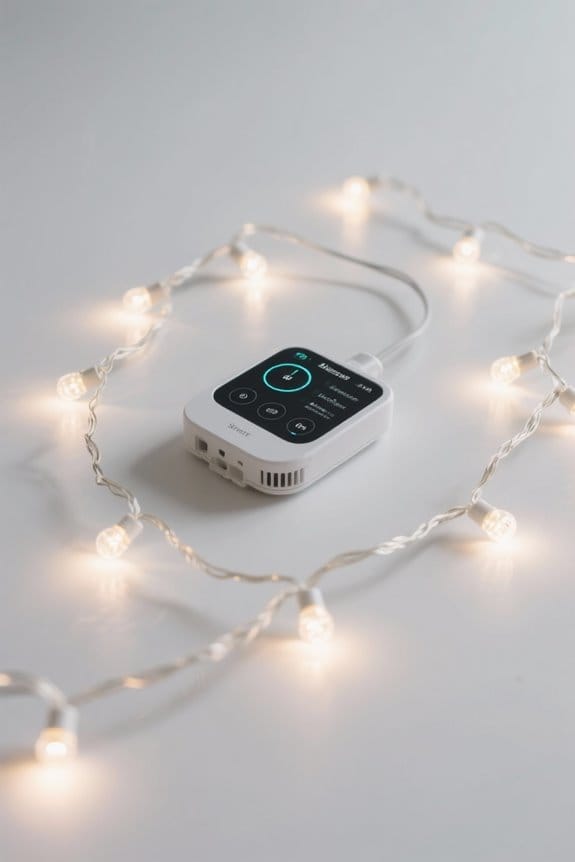
To initiate the setup process for smart string lights, users must first securely screw the lights into a compatible electrical outlet rated for appropriate voltage levels, ensuring an uninterrupted power supply. Once powered, the lights should be toggled on and off between three to five times rapidly to enter pairing mode, identifiable by a blinking indicator. This step is critical for integrating the lights into a Smart Home ecosystem, where the WiFi network serves as the backbone for communication among multiple devices. It is essential that the WiFi network operates on a 2.4 GHz frequency, as this protocol maximizes compatibility and signal stability. Proper preparation at this stage establishes a reliable connection, enabling seamless control and synchronization with other smart devices within the user’s home environment. To ensure durability and longevity, consider using devices with IP65 or higher rating for reliable outdoor connectivity and protection against weather elements.
Installing the Smart Life App on Your Device
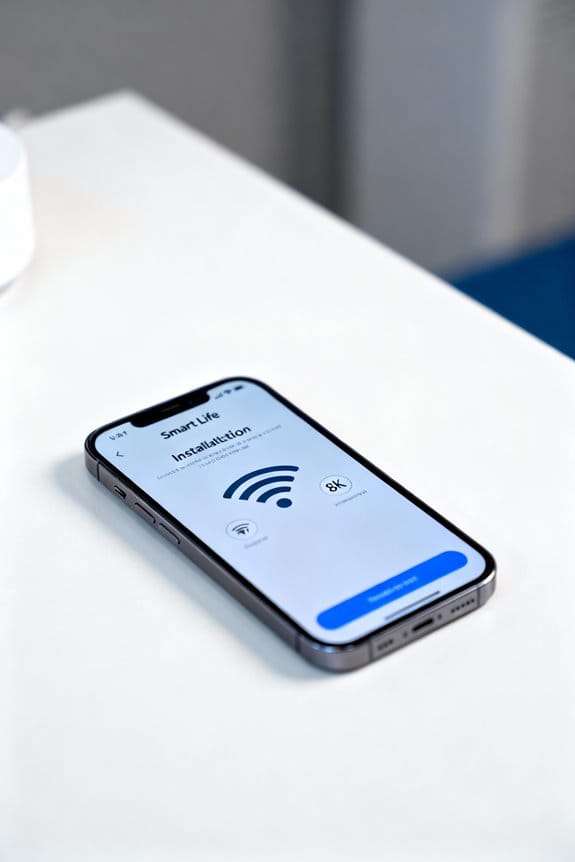
While the physical installation of smart string lights is a vital preliminary step, the subsequent digital integration hinges on installing the Smart Life App on a compatible mobile device, which must connect to a stable WiFi network operating at 2.4 GHz to guarantee peak device compatibility and communication efficiency; this application can be located and downloaded via popular digital distribution platforms such as the Apple App Store for iOS devices or Google Play Store for Android devices, where users can initiate the download process by selecting the “Download” button, after which the app environment supports either account creation or login with existing credentials to open extensive functionality and seamless device management interfaces. Make sure to familiarize oneself with the app’s interface that enables device addition and allows users to adjust brightness. If technical challenges arise, contact us resources are readily accessible for support. It is important to ensure the connection is to a 2.4 GHz WiFi network because most smart string lights do not support 5 GHz networks, which can cause compatibility issues.
Recommended Products

[Permanent LED Lights with RGB+IC Technology & Independent Control] – Bring your home’s eaves, soffits, or roofline to life with fully addressable, color-changing LEDs. Through the Lepro app, you can customize every detail—assign colors, create DIY scenes, or turn off specific lights for comfort, like keeping areas near bedroom windows dark for better sleep. The app is continuously updated with new features.

PERMANENT OUTDOOR LIGHTING – Weatherproof and built to last in all seasons (-4°F to 131°F) as well as ETL and NEC compliant for safety while 4ft. spacing provides the perfect glow for luxurious accent lighting

【Vibrant Outdoor Lighting】Unlike traditional RGB lights, our upgraded RGB+IC technology lets each segment display multiple colors simultaneously—creating dynamic rainbow flows, chasing effects, and smooth gradients. Whether for Halloween, Christmas, daily patio lighting, or party decorations, these outdoor lights instantly enhance your home’s atmosphere.
Enabling Pairing Mode on Your String Lights
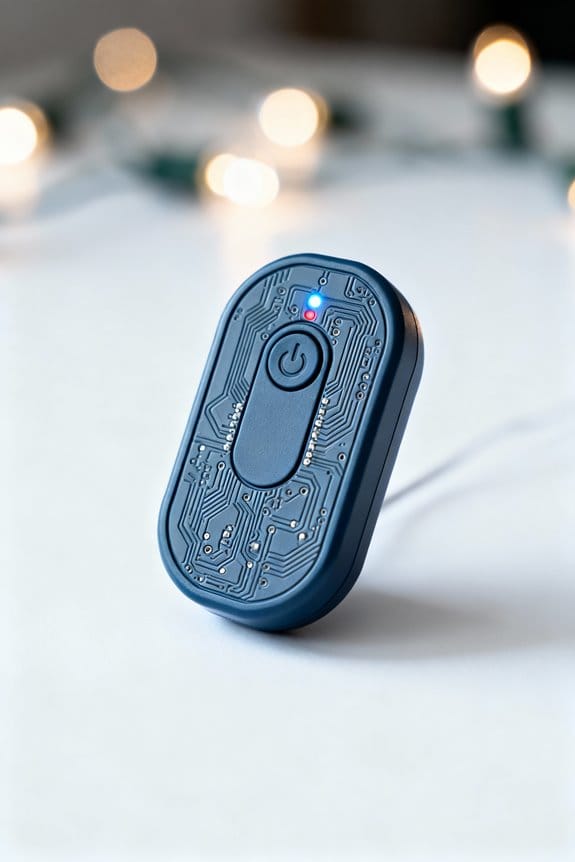
Activating pairing mode on the Smart String Lights requires rapidly toggling the power switch between the on and off positions three to five times in quick succession, which initiates a blinking signal indicating readiness to connect; this process must occur with the lights securely installed in a compatible, powered socket and the user’s smartphone connected to a stable 2.4 GHz WiFi network, ensuring ideal synchronization protocols supported by the Nanoleaf App, which subsequently detects the device and facilitates a guided connection procedure confirmed by the lights ceasing to blink and maintaining constant illumination, signaling a successful and stable wireless link suitable for further configuration. Pairing mode indicators, such as the blinking pattern, provide essential feedback, while pairing troubleshooting tips include verifying network bandwidth and socket compatibility. Effective light syncing techniques enhance initial connectivity and reduce pairing errors. To maximize the reliability of your smart string lights during setup, consider using power sources with batteries that have a 10-year shelf life.
Recommended Products
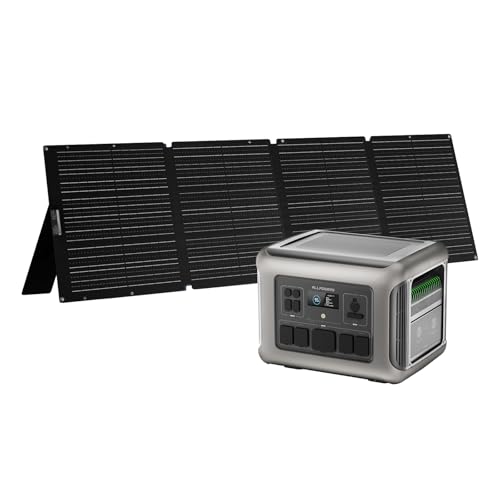
Long-lasting LiFePO4 Power Station with 3500+ Cycles - Unlike traditional portable generators, this battery generator features a premium LiFePO4 battery that delivers over 3500 cycles to 80% capacity, ensuring reliable power for more than a decade of use in your home or RV essentials kit. When you need a quick power top-up, this portable power station can be fully charged in just 1 hour via AC outlet, so your quiet generator is always ready for the next adventure or unexpected power outage.

Acoustic Piano Touch: Weighted keyboard action is heavier in the low keys and lighter in the high keys, perfect for practice or playing for friends and family

Acoustic Piano Expression - Whether you’re practicing, performing, or simply exploring your creativity, experience the feel of an acoustic piano
Creating or Logging Into Your Smart Life Account
Account setup represents a foundational step in integrating Smart String Lights with a home network, requiring users to download the Smart Life App from official sources such as the App Store or Google Play, which is compatible across iOS and Android platforms, guaranteeing broad accessibility. Upon launching the app, users must either create an account or log in with existing credentials, following account creation tips such as using a valid email to facilitate verification and password recovery techniques critical for security and access restoration. Steering through the app user interface afterward enables easy addition and management of devices within the smart lighting ecosystem, optimizing control and customization. This structured approach guarantees users efficiently establish a secure and manageable connection environment for their Smart String Lights. For outdoor setups, ensuring devices have an IP64 rating is crucial for protecting against dust and water exposure.
Connecting to a 2.4 GHz WiFi Network
Ensuring a stable connection to a 2.4 GHz WiFi network is crucial for the effective operation of Smart String Lights, as these devices lack compatibility with 5 GHz bands, which often offer higher speeds but reduced range and penetration; users must confirm that both the smart lights and the controlling smartphone are connected to the same 2.4 GHz network to facilitate seamless pairing. This WiFi frequency compatibility is essential because 2.4 GHz signals penetrate walls more effectively, improving network connection stability in typical home environments. During setup, entering 2.4 GHz credentials and activating pairing mode—triggered by cycling the bulb on and off 3-5 times until rapid blinking—ensures the lights can detect signal strength considerations necessary for consistent communication, enabling reliable remote control and scheduling without interruption. Many smart lighting options also support smart RGBCW controls, enhancing convenience in creating automated lighting scenarios.
Recommended Products

Smart Landscape Lighting – Control and customize these premium-quality landscape lights using the free Enbrighten app – available on the Apple App Store and Google Play (2.4GHz Wi-Fi required)

Updated and upgraded to include Smart and telemetry features along with a modern and higher visibility trim scheme

PERMANENT OUTDOOR LIGHTING – Weatherproof and built to last in all seasons (-4°F to 131°F) as well as ETL and NEC compliant for safety
Adding Your Smart String Lights to the App
Before initiating the addition of Smart String Lights to the dedicated Nanoleaf App, the lights must be powered on and placed into pairing mode by cycling their power state between three and five times until rapid blinking commences; the user’s smartphone should simultaneously maintain a connection to a stable 2.4 GHz WiFi network, as the app requires direct communication through this frequency band to facilitate seamless integration. Upon launching the Nanoleaf App on an iOS or Android device, users must log in or create an account, then select the ‘+’ icon to begin adding the lights. Entering accurate 2.4 GHz network credentials facilitates proper device linkage, optimizing smart home integration. This process enhances user experience by enabling access to product features such as brightness and color customization directly through the app interface. For optimal outdoor use of the lights, consider powering them through a weatherproof power strip with IP44 water resistance to ensure safety and durability in varying weather conditions.
Confirming Successful Connection
Following the successful initiation of the pairing process through multiple power cycles and the input of accurate 2.4 GHz network credentials within the Nanoleaf App, attention must be given to confirming that the Smart String Lights have established a stable connection. Connection confirmation methods typically include app notifications, which indicate the lights are online and responsive, and visual feedback from the lights themselves, such as steady illumination. Users should enable app notification settings to receive real-time updates regarding connectivity status and potential disruptions. Additionally, optimizing connection stability involves regularly checking the signal strength, avoiding interference from 5 GHz networks, and repositioning lights or routers to reduce signal dropouts. These practices guarantee continuous control via the app or voice commands, maintaining reliable performance for the Smart String Lights in various environmental conditions. For maintaining consistent power during use, it is important to consider low-resistance metal contacts in the power supply components to reduce voltage sag and ensure stable operation.
Customizing Light Settings Through the App
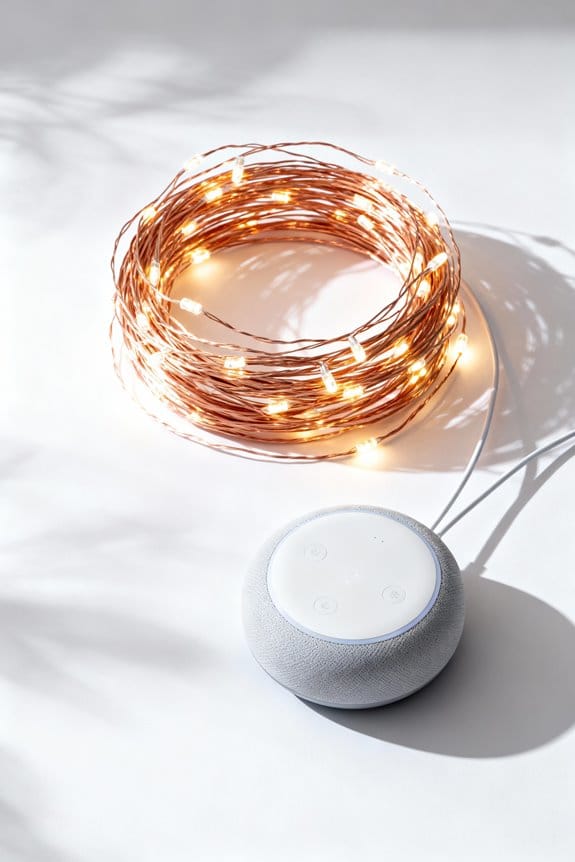
How can users optimize their environment with Smart String Lights? Through the Nanoleaf App, individuals engage in extensive color options exploration, choosing from over 16 million shades, including tunable whites, to achieve desired visual effects. Brightness adjustments are precise, allowing dimming control from 1% to 100%, facilitating smooth changes suited for different settings or times of day. This level of control supports ambiance creation, where dynamic flowing gradients add a layered, customized dimension to lighting schemes for various occasions. The app’s user-friendly interface enables managing multiple lights and curating themed setups aligned with specific preferences, enhancing spatial aesthetics reliably. Combined, these features encourage a tailored illumination experience that adapts to both functional needs and stylistic objectives, optimizing environmental conditions through intuitive, technical interface capabilities. Additionally, integration with voice assistants like Amazon Alexa and Google Home further simplifies control, offering hands-free customization options.
Recommended Products

🌞💡【120 / 240 Split Phase AC Output】12KW watts low frequency power inverter with transformer, 36kW watts Peak ,48 volts DC input. The inverter is split-phase and will output 110/120 Vac, and it can set via the LCD screen 50 or 60Hz Output. Support to run different batteries including Lead-Acid, GEL /Lithium battery,Compatible to mains voltage or generator which charge the battery or power the load. With lithium battery communication function.(Our products do not come with batteries)

Stream Lights show you which notes to play and when to play them, with four LED lights above each key. Lights move towards the keys to show the timing of the next note in the song.
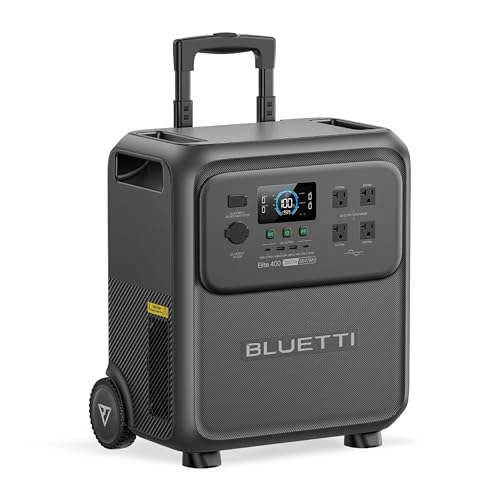
[Massive Capacity, Strong Power] - With 3840Wh capacity and 2600W output (surge to 3900W) reliably run everything from a refrigerator to power tools. Featuring 9 versatile ports, Elite 400 is the perfect all-in-one power source for home emergencies, daily use, and weekend adventures.
Setting Up Schedules and Automations
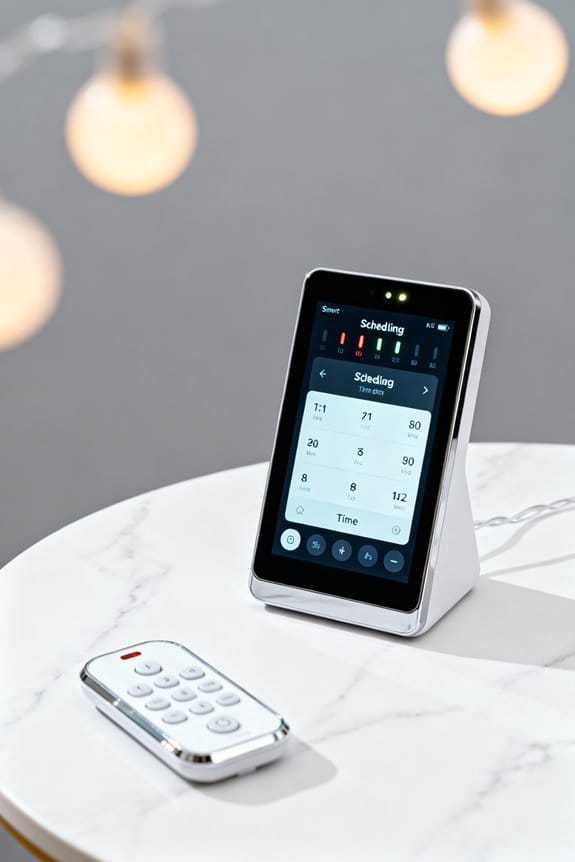
Beyond customizing color schemes and brightness through the Nanoleaf App, users gain the capability to schedule and automate their smart string lights to operate on programmed timelines, thereby enhancing operational efficiency and convenience. Through the app, schedules can be created to automatically turn lights on or off at specific times, while customized color themes and brightness levels provide creative lighting ideas tailored for various occasions. Automation benefits include triggers based on user location, such as activating lights upon arrival or deactivating them when leaving, contributing to energy savings. Furthermore, schedules and automations can synchronize lighting effects with other connected smart devices for all-encompassing home control. Scheduling tips emphasize regular updates to adapt settings, and the app allows easy modifications or deletions, ensuring flexible, personalized lighting that meets evolving user needs.
Recommended Products

🌞💡【120 / 240 Split Phase AC Output】8KW watts low frequency power inverter with transformer, 24kW watts Peak ,48 volts DC input. The inverter is split-phase and will output 110/120 Vac, and it can set via the LCD screen 50 or 60Hz Output. Support to run different batteries including Lead-Acid, GEL /Lithium battery,Compatible to mains voltage or generator which charge the battery or power the load. With lithium battery communication function.

Long-lasting LiFePO4 Power Station with 3500+ Cycles: Unlike traditional portable generators, this battery generator features a premium LiFePO4 battery that delivers over 3500 cycles to 80% capacity, ensuring reliable power for more than a decade of use in your home or RV essentials kit.
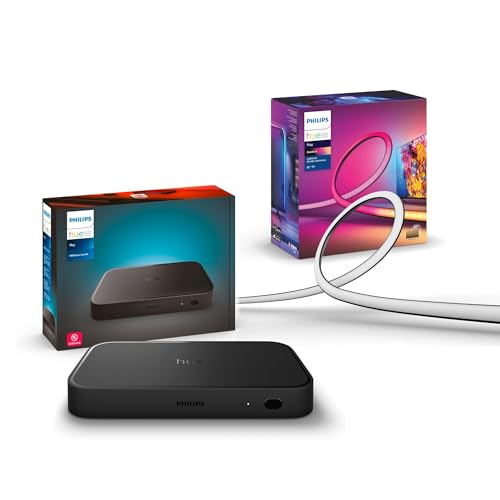
WHAT'S IN THE BOX - Includes one Hue Play HDMI Sync Box 8K, perfect for an immersive media experience, and one Gradient 75" TV smart LED light strip with mounting brackets for use on 75-inch+ TVs
Troubleshooting Common Connection Issues
When connection problems arise with smart string lights, it is essential to first confirm the use of a stable 2.4 GHz WiFi network, since these devices generally do not support 5 GHz frequencies and switching bands can lead to unanticipated disruptions; in addition, ensuring the lights are correctly powered on and placed in pairing mode—typically achieved by toggling the power 3 to 5 times until rapid blinking occurs—significantly increases the likelihood of successful synchronization. Common pairing mistakes often involve using an incompatible device or failing to match the smartphone and lights on the same WiFi network, which complicates connectivity. For connection failures solutions, performing device compatibility checks, including verifying compatibility with the controlling app, and executing a factory reset per manufacturer protocols help resolve persistent issues effectively. It is also recommended to verify that your smart lights have relevant certifications and compliance to ensure safe and reliable operation outdoors.
Frequently Asked Questions
How Do Smart Lights Connect to Wi-Fi?
Smart lights connect to Wi-Fi using standard Wi-Fi protocols, ensuring smart light compatibility with 2.4 GHz networks. During setup, they authenticate through secure network security measures, allowing remote control and seamless integration within smart home ecosystems.
How to Connect Smart LED Strip Lights to Wi-Fi?
Ironically, the simplest glow requires complex rituals. Smart light compatibility demands 2.4 GHz Wi-Fi, followed by app integration through Wi Fi setup. Once connected, controls and colors obey, proving brilliance needs a paradoxical connection dance.
What Are the Disadvantages of Smart Lights?
Smart lights face disadvantages including high upfront cost analysis and potential increased energy consumption. Compatibility issues may arise with different smart home systems, limiting integration. Additionally, security risks and reliance on stable internet can pose challenges for users.
What Happens to Smart Lights When the Internet Goes Out?
When darkness falls beyond the internet’s reach, smart lights may lose remote control, yet local control options and offline functionality features offer fleeting solace. Their smart light reliability dims, reminding users of technology’s fragile heartbeat.